
New User Training
Account Setup
To use the supercomputer, an account with the Office of Research Computing (ORC) is needed. This is different from a BYU account, and should have a different password.
- Request an account if not done already.
- Enroll in Two-Factor Authentication (2FA) after account approval.
Most of our users need Linux skills. Review our Linux tutorial if unfamiliar.
Supercomputer Overview
Login Nodes
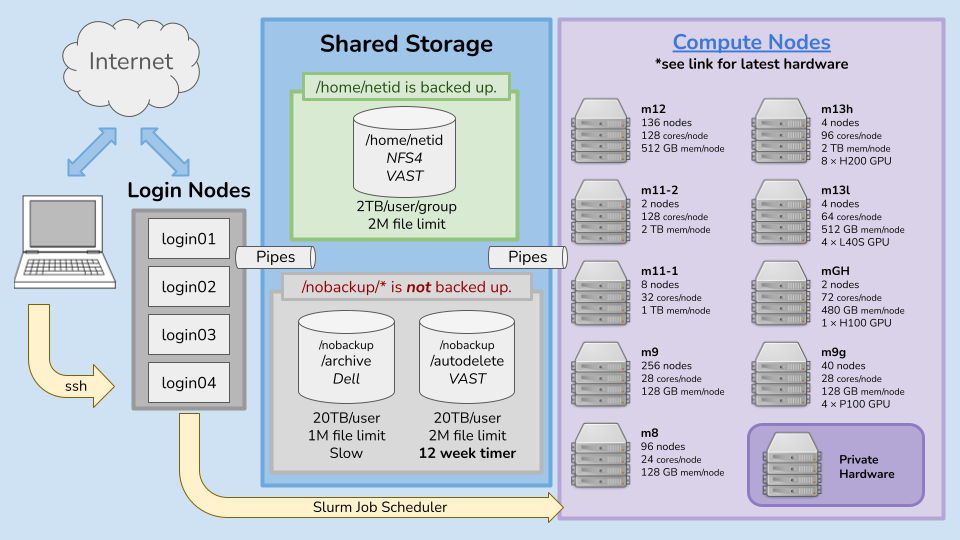
Login nodes are used to access the rest of the resources on the supercomputer: They are used to prepare files and submit jobs to be run on compute nodes.
- Connected to the internet.
- Accessible via
sshand OnDemand (described below). - Meant for Slurm job preparation.
- Intended for housekeeping, not computation.
Storage
Files are stored in three different directories called home, nobackup/archive, and nobackup/autodelete. Both login nodes and compute nodes are able to use files in these directories.
The home directory is for critical data, such as job scripts, computational results, installed programs, and source code.
- Performance: High speed storage.
- Capacity: 2TB or 2 million files.
- Backups: Daily.
The nobackup/autodelete directory is for job scratch files. Do not install programs here.
- Performance: High speed storage.
- Capacity: 20TB or 2 million files.
- Backups: None.
- Data deletion: Automatically deletes any files unused for 12 weeks.
The nobackup/archive directory is for less-active storage. It generally shouldn't be used directly by batch jobs, and it isn't a file dumping ground.
- Performance: Much slower storage.
- Capacity: 20TB or 1 million files.
- Backups: None.
To check remaining storage, run the command orcquota.
Those working in groups may be interested in using a File Sharing Group for shared file access.
See the Storage page for more details.
Compute Nodes
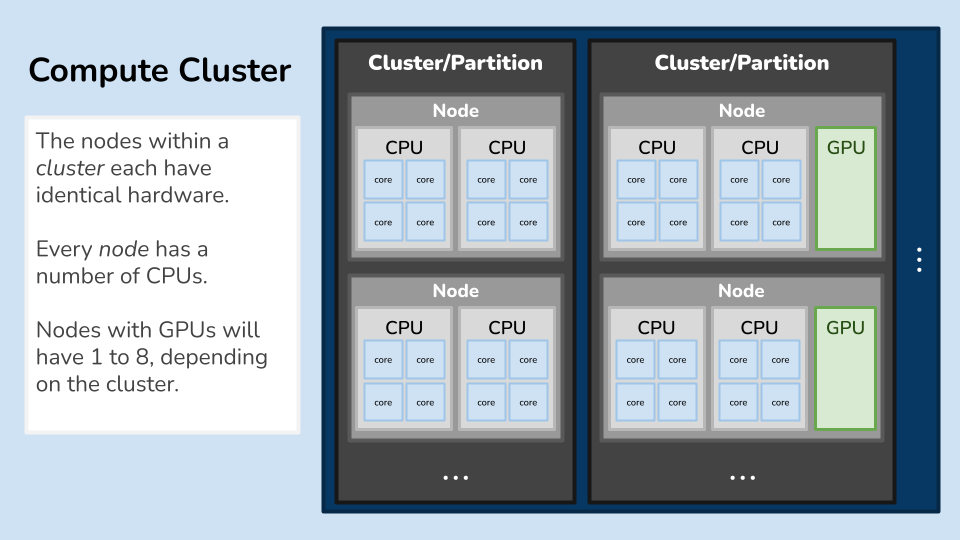
Compute nodes are where computations are run when a job is submitted.
- Meant for project computation.
- Not connected to the internet by default. See Internet Access from Jobs for exceptions.
- Private hardware available under specific circumstances.
See the Compute Resources page for hardware specifics.
Slurm
Requesting hardware resources through the Slurm scheduler allows use of compute nodes. Slurm reserves resources for the duration specified, and can run programs or scripts. This is a Slurm job.
- Requesting fewer resources allows Slurm to find and reserve those resources more quickly.
-
sbatchis used for noninteractive jobs. -
sallocis used for interactive development, allowing commands and software to be run directly on a compute node.
Jobs can be cancelled with the scancel command.
-
scancel <JobID>: cancel specific job. -
scancel --me: cancel all current jobs.
See the Slurm page for more details.
System Access
Terminal
Use ssh in a terminal for command-line access.
- Connect by running
ssh netid@ssh.rc.byu.eduin terminal. - Review this Linux tutorial if unfamiliar.
 Open OnDemand
Use a web browser to run Open OnDemand for select GUI programs and file access. GUI programs are launched as a job with compute resources.
- Access by visiting ood.rc.byu.edu or clicking on the Open OnDemand icon at the top of any page.
Submitting a Job via Terminal
In a terminal, use ssh and ORC credentials to connect a login node. If 2FA is not set up, login will fail.
ssh netid@ssh.rc.byu.eduMake a directory called training. Change directory to training.
mkdir training
cd training
Use the "nano" text editor to make a job script file. In this example it's named jobscript.sh.
nano jobscript.shIn a browser tab, open the Job Script Generator.
- Change walltime to
00hours03mins00secs. - Click "Copy Script to Clipboard".
Paste the job script template into nano with Ctrl+Shift+V. Add these commands at the end:
hostname
whoami
date
sleep 60
Exit this file using Ctrl+X. Press Y, then Enter to save.
Use cat to output the contents of a file to the terminal.
When typing commands in terminal, Tab can be used to autocomplete command/file names. For this command, typing cat j then hitting Tab will autofill the rest of the file name.
cat jobscript.shNow, the job is ready to run with sbatch:
sbatch jobscript.shIt will say Submitted batch job 1234 where 1234 is the Job ID.
The job has been submitted to the Slurm Scheduler. To see queued jobs, run:
squeue --meBecause of the line sleep 60 the job will run for an extra 60 seconds. The queue will only show pending and running jobs.
Job output is found in a slurm.out file. Use ls to find the output file. Use cat to view its contents.
ls
cat slurm-1234.out
When run on their own, the commands hostname, whoami, and date will send output directly to the terminal. When run through sbatch, the output will be in slurm-1234.out instead.
Reviewing Jobs
Job Statistics
Information about finished jobs is found on the Job Statistics page, including elapsed time, CPU usage, memory usage, and job completion status.
Incremental Development
It can't be emphasized enough to start small before scaling up.
- Test on one sample before testing on multiple.
- The more resources requested, the longer the time in the wait queue.
When resources are reserved, they become unavailable to all other users during the allotted time. Try to get the most out of the resources reserved (or request less resources) to allow for other users to have the resources they need. Good rules of thumb:
- Try to get CPU usage as close to 100% as possible.
- Try to get memory usage around 80%. Exceeding 100% memory usage will slow and eventually kill the job.
Software
Module System
We already have hundred of programs centrally installed. As a quick exercise, try running this command on a login node:
cowsay "moo"This gives -bash: cowsay: command not found
To make the cowsay program available, load the cowsay module:
module load cowsay
cowsay "moo"
As an additional challenge, try running cowsay in a job.
Other software can be loaded similarly. Please open a ticket to inquire about missing software.
Learn more about modules here.
Mamba/Conda
Mamba/Conda virtual environments take care of version management and package compatibility, making code with many specific dependencies easy to manage. See the Conda Environments page for more details.
Containers
Some complex applications can be easily run within a downloaded container. We have Apptainer instead of Docker for security reasons.
See the Containers page for more details.
Installing By Hand
Anything installed by a user has to be done without sudo/root access. Please open a ticket for additional help.
Debugging and Performance Analysis
Using salloc
salloc works much like sbatch and accepts similar parameters, but is interactive. Instead of sending the job off to a compute node and returning the slurm.out output, the user is put directly on a compute node. They can run commands and see their output right in the terminal instead of in a slurm output file.
Using salloc allows for other helpful debugging and performance analysis tools, like viewing CPU usage with htop or GPU usage with nvtop.
See the Slurm page for more details about salloc and other Slurm features.
Using sbatch
See live slurm output using the command tail -f slurm-<JobID>.out.
Use ssh to connect to the node your job is on by running ssh <NodeName> from a login node. This can be useful for profiling. The name of the node can be seen with squeue --me.
Extras
File Transfer
Files can easily be uploaded, downloaded, or synced between ORC storage and other systems. The best choice depends on what is most convenient in the given use-case.
- Files can be transferred and synced using programs like scp. See the Transferring Files page for more details.
- Files can also be easily uploaded or downloaded using Open OnDemand's web interface.
- Globus is useful for large transfers between institutions. Personal devices can also connect to Globus.
Tips and Tricks
Some highlights from the Tips and Tricks page:
- "ssh multiplexing" allows for less frequent password entry.
- "tmux" allows for a session to persist even when disconnected.
- Command history is saved and can be reused through commands like
historyor the keybindCtrl+R.
Last changed on Tue Sep 15 16:55:45 2026